
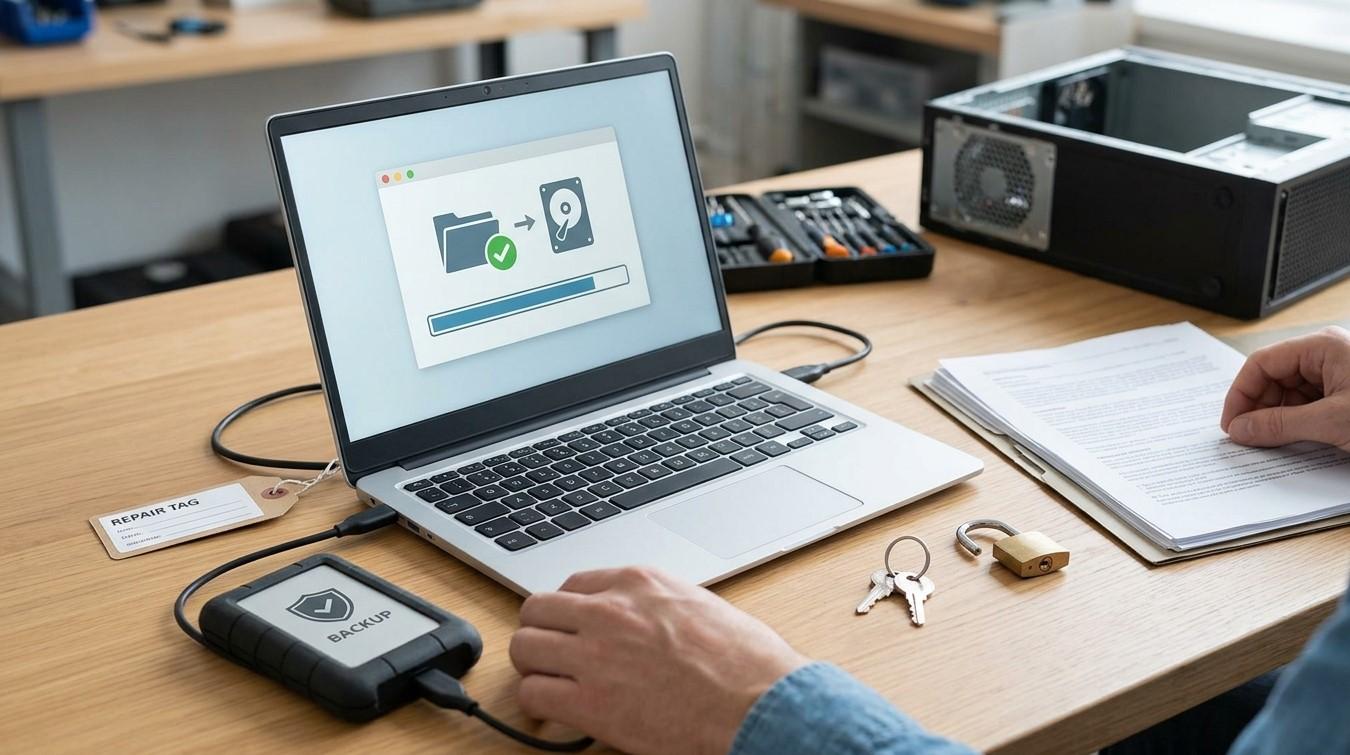

Taking your computer to a repair technician can be stressful, especially when it contains important documents, personal photos, business records, passwords, and other private information. Although professional repairs can restore your device's performance, preparing your data beforehand is essential for protecting your files and maintaining your privacy.
Whether your computer has a hardware failure, software problem, virus infection, or performance issue, a few simple precautions can reduce the risk of accidental data loss. Before contacting a computer repair Albany service, take time to back up important files, secure your accounts, and understand how your information will be handled.
In this guide, we will explain practical ways to protect your data before a repair appointment, including what to do if you need convenient on-site computer repair Albany services.
Table of Contents
-
Why Data Protection Matters Before Computer Repair
-
Back Up Your Important Files
-
Protect Your Personal Information
-
Secure Your Accounts and Passwords
-
Prepare Your Computer for the Technician
-
What to Do If Your Computer Cannot Start
-
Frequently Asked Questions
-
Conclusion and Call to Action
1. Why Data Protection Matters Before Computer Repair
Computers often contain much more than everyday documents. They may store financial records, saved passwords, customer information, private conversations, work files, and personal photographs.
During certain repairs, technicians may need to access the operating system, storage drive, or user account to diagnose a problem. Some procedures, such as reinstalling an operating system or replacing a storage device, can also result in data loss.
Preparing your computer before service helps reduce these risks and makes the repair process more organized.
2. Back Up Your Important Files
Creating a backup is one of the most important steps before sending your computer for repair.
Use an External Storage Device
Copy important documents, photos, videos, and work files to an external hard drive or USB storage device. After copying, open a few files to confirm that the backup works correctly.
Use Cloud Storage
Cloud services can provide another way to protect important information. You can upload essential files to a trusted cloud storage account and access them from another device if necessary.
Check Your Backup
Do not assume that a backup is complete simply because the copying process finished. Verify that important folders and files are present and accessible.
If your storage drive is making unusual noises or showing signs of failure, avoid repeatedly attempting backups. Seek professional advice because further use may worsen the damage.
3. Protect Your Personal Information
Before handing over your computer, review the information stored on it.
-
Remove unnecessary personal files that you no longer need.
-
Sign out of accounts that do not need to remain active.
-
Close private documents and applications.
-
Avoid leaving sensitive financial or personal information openly accessible.
-
Consider creating a separate temporary user account if the technician needs operating system access.
Do not delete important files simply to hide them before repair. A verified backup should come first.
4. Secure Your Accounts and Passwords
Your computer may automatically sign in to email, social media, banking, shopping, and other online accounts.
Take these precautions:
Sign Out of Important Accounts
Sign out of personal accounts where practical, especially those that contain sensitive information.
Use Strong Passwords
Make sure your important accounts use unique passwords. If you believe a password may have been exposed, change it from a trusted device.
Enable Two-Factor Authentication
Two-factor authentication adds another layer of security by requiring an additional verification step when someone attempts to access your account.
Never Share Your Main Password Unnecessarily
Ask the technician whether they can perform the repair using a temporary account or another secure method. If access is genuinely required, discuss the safest approach before providing credentials.
5. Prepare Your Computer for the Technician
Good preparation can make diagnosis and repair easier.
Before your appointment:
-
Write down the symptoms you have noticed.
-
Record any error messages that appear.
-
Mention recent software installations or updates.
-
List important files that must be preserved.
-
Ask whether the repair could involve formatting or replacing the storage drive.
-
Confirm whether data backup or recovery is included in the service.
If you arrange on-site computer repair Albany, you may be able to discuss these concerns directly with the technician at your home or workplace. Before work begins, explain your privacy requirements and confirm which files or accounts may need to be accessed.
6. What to Do If Your Computer Cannot Start
Sometimes a computer becomes completely unusable before you have an opportunity to create a backup.
If this happens, avoid repeatedly forcing the device to start, especially if you suspect storage failure. A professional technician may be able to assess the drive and determine whether data recovery is possible.
Never assume that repair automatically includes data recovery. Ask about the available recovery options, potential costs, and risks before approving additional work.
7. Frequently Asked Questions
Should I back up my computer before taking it for repair?
Yes. Backing up important files is strongly recommended because certain repairs may involve reinstalling software, replacing storage devices, or formatting drives.
Can a repair technician access my personal files?
Depending on the repair, a technician may need access to certain files or system areas. Ask what access is required and discuss privacy precautions before handing over your device.
Should I remove my passwords before computer repair?
Sign out of unnecessary accounts and avoid sharing your main passwords unless absolutely necessary. Ask whether a temporary account can be used for troubleshooting.
What if my computer does not turn on and I cannot back up my data?
Avoid unnecessary attempts to restart it. A technician can assess the storage device and explain whether data recovery may be possible.
Does professional computer repair always delete data?
No. Many repairs do not require deleting personal files. However, some software repairs and storage replacements can affect data, so always discuss this possibility beforehand.
8. Conclusion and Call to Action
Protecting your important data before computer repair is a simple but valuable step. Creating verified backups, securing online accounts, reviewing private information, and discussing data protection with your technician can help reduce unnecessary risks.
Whether you need hardware troubleshooting, software repair, or convenient on-site computer repair Albany services, preparation helps make the process smoother and safer.
For professional computer support and repair information, visit Computer Repair Albany to explore available services. Click here to visit https://computerrepairalbany.net/ and learn more about your repair options. You can also read more about computer maintenance and troubleshooting to keep your device and important information protected.